


Working with ISO-XML prescription maps
If you plan the tasks in an FMIS and transfer them to the terminal as Taskdata.xml, you only need to ensure that each prescription map is assigned to the proper metering unit.
To do so, the following options are available:
- ▪
- If you are spreading/applying only one product, you do not need to assign the prescription map to a metering unit. In this case, the prescription map is used by all metering units that are compatible with this product.
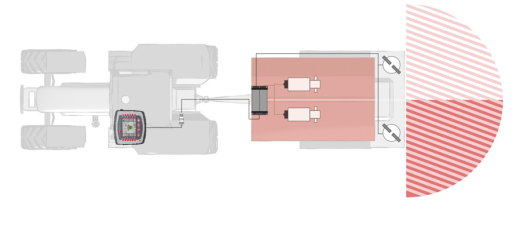
Fertilizer spreader: The same fertilizer is spread on the left and right. The rate depends on the prescription map.
- ▪
- If you are spreading/applying multiple products, assign each prescription map or each target rate to the proper metering unit.
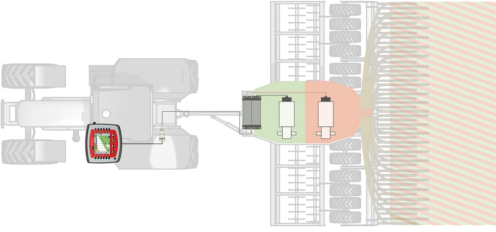
Seeder: Liquid fertilizer and seed based on different prescription maps.
Procedure
If you have a machine that has more than one product and more than one metering unit, proceed as follows:
- þ
- You have created a task in the FMIS, containing at least one prescription map.
- 1.
- Insert the USB memory device into the terminal.
- ⇨
- The data is transferred from the USB memory device to the SD card.
- 2.
- In ISOBUS-TC, tap “Tasks”.
- ⇨
- The task list appears.
- 3.
- Tap the task.
 - Start the task.
- 5.
- Tap “Target rates”.
- ⇨
- A list with target rates from the task appears.
- ⇨
- Target rates that have not yet been assigned to a metering unit are marked with the following icon:
 . These target rates must now be assigned to the metering units.
- ⇨
- For the process, it makes no difference if the target rates come from one or several prescription maps.
- 6.
- You now have the following options:
Option a: If the machine only spreads/applies one product and only one product appears in the list, exit this screen with . In this case, the prescription map will not be assigned to a metering unit. All metering units that are compatible with the product then automatically use this presription map. The configuration is now complete.
Option b: If the machine spreads/applies different products but the task only contains one target rate, you do not need to assign this target rate to a metering unit. The target rate is automatically sent to the appropriate metering unit.
- 7.
- Option c: If the machine spreads/applies different products and the task therefore contains multiple target rates, you must assign them to the metering units. Proceed with the following steps.
- 8.
- Tap the line with one of the target rates.
- ⇨
- A form for entering the target rate appears. The lines “Quantity”, “Unit” and “Product” contain values from the prescription map.
- ⇨
- Change the value on the “Quantity” line.
- 9.
- Tap “Implement element”.
- ⇨
- Now all of the metering units appear to which you can assign a target rate and that support the selected units.
- 10.
- Select the metering unit that should work with the selected prescription map.
- ⇨
- You have assigned a prescription map to a metering unit.
- 12.
- Repeat the procedure for all prescription maps in the list.
- ⇨
- You have started a task with a prescription map.
- ⇨
- When you now drive to the field and activate the machine, the target rate matching the GPS position will be transmitted to the ISOBUS job computer.